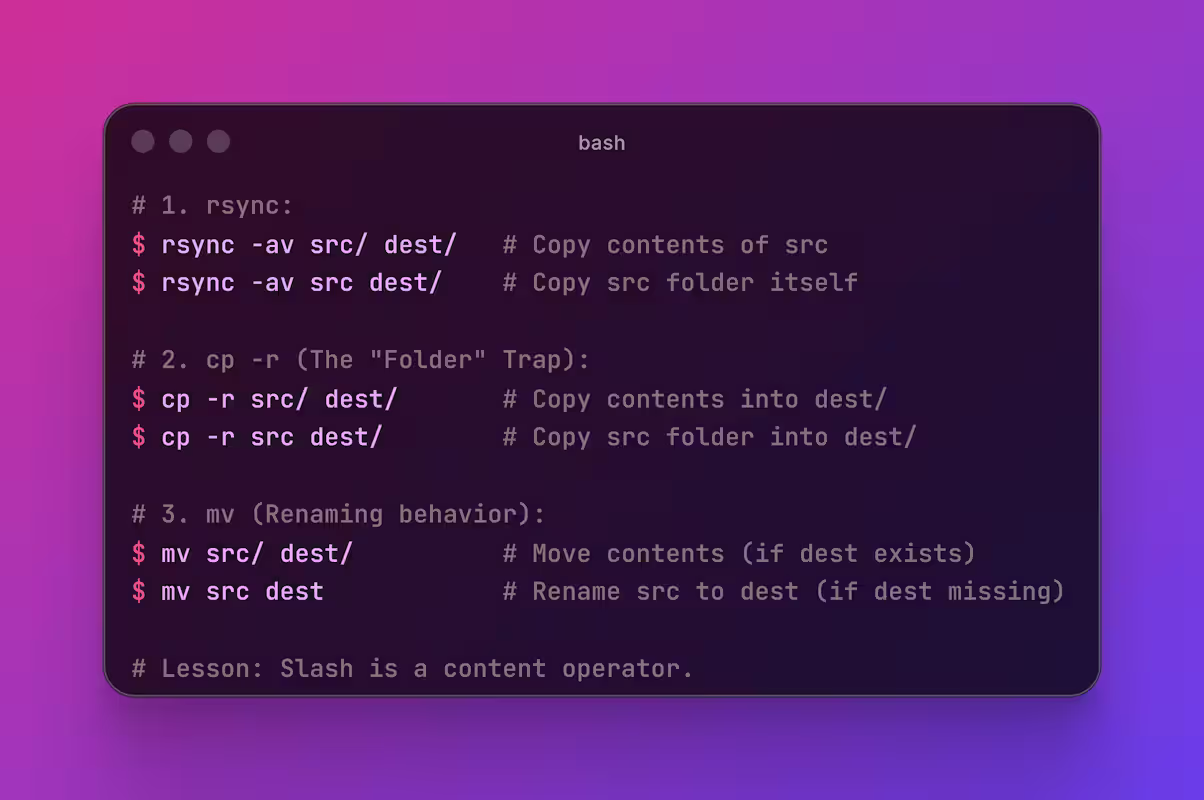
The way common Linux commands handle trailing slashes is a frequent source of confusion, often leading to unintended directory nesting or accidental data loss. To clarify these behaviors, I categorize standard commands into Path-Insensitive and Path-Sensitive patterns, highlights critical pitfalls, and provides a set of clean best practices for daily operations.
1 Pattern 1: Path-Insensitive (mv, cp, rm, chmod, chown, find)
For these commands, a trailing slash on the source path makes no difference; dir1 is treated exactly the same as dir1/. The outcome depends entirely on the status of the destination path:
1.1 Destination Does Not Exist
- No trailing slash on destination (e.g.,
mv dir1 dir2): Renamesdir1todir2(the same logic applies tocp). - Trailing slash on destination (e.g.,
mv dir1 dir2/): Throws an error. A trailing slash explicitly indicates that the destination must be an already existing directory.
1.2 Destination Already Exists
1.2.1 Specifying the parent directory directly
e.g., mv dir1 dir2/, rm -rf dir1/, chmod -R 755 dir1/
- Transfer operations (
mv/cp): Moves or copies the entiredir1directory intodir2, resulting in./dir2/dir1/. - Maintenance operations (
rm/chmod/chown/find): Appled directly to thedir1directory itself and all of its contents.
1.2.2 Specifying a subdirectory with the same name
e.g., mv dir1 dir2/dir1
- If
dir2/dir1does not exist: Moves normally, resulting in./dir2/dir1/. - If
dir2/dir1already exists: Directory protection is triggered. The sourcedir1will be nested inside the target, causing unintended nesting, resulting in./dir2/dir1/dir1/.
1.3 Destination Is a Regular File
mv dir1 existing_file.txt Error. Linux does not allow a directory to overwrite a regular file.
2 Pattern 2: Path-Sensitive (rsync, ln, scp)
These commands enforce strict logic regarding trailing slashes. Adding or omitting a slash can lead to completely different results.
2.1 rsync
Assuming the destination directory dir2 already exists:
- No trailing slash on source (
rsync -a dir1 dir2/): Operates on the directory as a whole, creatingdir1insidedir2. - Trailing slash on source (
rsync -a dir1/ dir2/): Operates only on the contents of the directory, flattening and syncing the files directly intodir2. - Aligned names (Safest Practice) (
rsync -a dir1/ dir2/dir1/): Adding trailing slashes to both ends ensures an exact overwrite/sync of the contents without accidental nesting.
2.2 ln -s and rm (Symlinks)
- Creating a symlink (
ln -s /path/to/source_dir link_name): Never add a trailing slash to either path. Doing so can cause the link to point to an incorrect path or nest inside the target. - Deleting a symlink (
rm my_link): Never add a trailing slash.
If you mistakenly run rm -rf my_link/, the shell resolves the trailing slash
as “the contents of the source directory.” The system will bypass the shortcut
and completely wipe out all data inside the actual source directory, leaving
the symlink itself intact.
2.3 scp
Avoid adding a trailing slash to the source path (write it as scp -r dir1 user@host:/path/dir2). On some legacy Unix systems, adding a trailing slash to the source path is misinterpreted as “copy contents only,” which can break the remote directory structure.
3 The Wildcard (*) Problem
When you use dir1/* (such as mv dir1/* dir2/ or rm -rf dir1/*), the underlying shell expands * into a list of every individual item inside that directory.
By default, the Shell’s * does not match hidden files. Therefore, when running mv dir1/* dir2/ or rm -rf dir1/*, all hidden files (e.g., .env, .git) will be skipped and left behind in the original directory.
4 Best Practices
## 1. For archiving, copying, moving, deleting, and changing permissions (mv, cp, rm, chmod, chown):
##    Write the source path without a trailing slash. Always append a trailing slash to the destination if it is known to exist.
mv dir1 dir2/
cp -r dir1 dir2/
rm -rf dir1
chmod -R 755 dir1

## 2. For renaming a directory:
##    Do not add a trailing slash to either end.
mv old_dir new_dir

## 3. For managing symlinks (creating or deleting):
##    Strictly prohibit trailing slashes at the end of the paths.
ln -s /absolute/path/source_dir my_link   # Create
rm my_link                                # Delete

## 4. For rsync syncing directories with the same name:
##    Append trailing slashes to both the source and destination paths.
rsync -avz dir1/ dir2/dir1/